Choose artwork
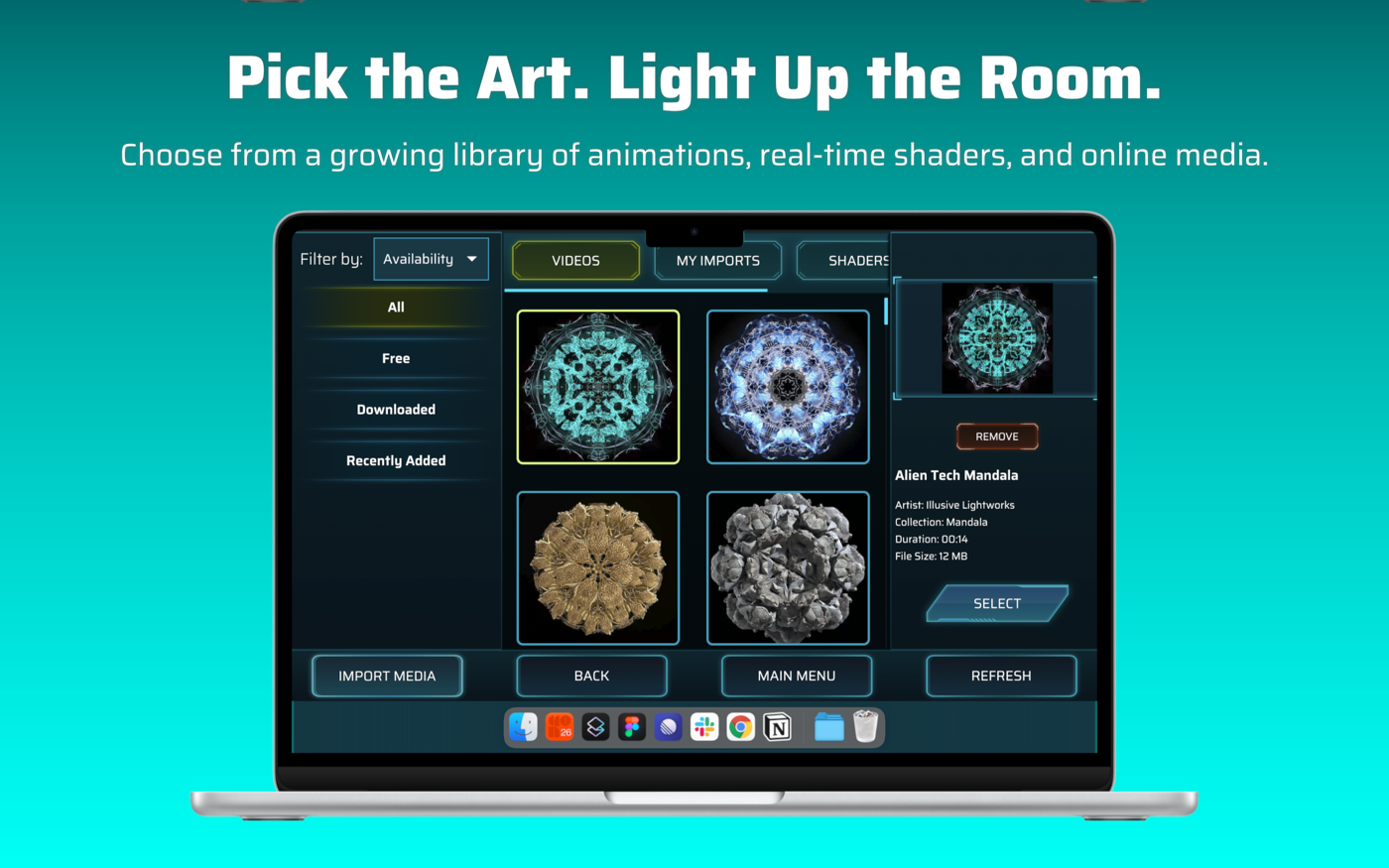
The picker opens when you start a new project, and again whenever you tap CHANGE ART in Step 1 (Align). It remembers where you left off, including the tab, filter and search.
| Tab | What’s in it |
|---|---|
| VIDEOS | The Illusive Lightworks library. Items download to your device when you want them. |
| MY IMPORTS | Videos and images you’ve brought in from your own device. |
| SHADERS | Real-time generated visuals that animate live. No video file, no audio. |
| ONLINE | Free stock video, searchable. Currently from Pixabay. |
Choosing and downloading
Section titled “Choosing and downloading”- Tap a thumbnail. The right-hand panel shows its title, artist, collection, duration and file size, with a live preview.
- Library items that aren’t on your device show Download, with a progress bar. When it’s finished the button becomes SELECT.
- Tap SELECT to put the art on the grid.
- Downloaded items show REMOVE to free the space again.
If the preview has sound, a speaker button lets you turn it on or off while previewing.
Filtering and searching
Section titled “Filtering and searching”- VIDEOS: the Filter by list (for example Availability) lets you narrow to All, Free, Downloaded or Recently Added.
- MY IMPORTS: filter by type (all, videos, images) or by date (newest or oldest).
- SHADERS: filter by style.
- ONLINE: use the search box. The list on the left chooses what you’re searching, or My Downloads for videos you’ve already saved. Scroll down for more results.
Importing your own media
Section titled “Importing your own media”Tap IMPORT MEDIA at the bottom to bring in a video or image from your device. Any shape or aspect ratio works; the app fits it for you. Imported videos are converted for smooth looping, and the Import quality setting controls the size/quality trade-off. See Settings.
Online videos
Section titled “Online videos”Select a result to see its poster, author, source and duration. Download saves it (the bar fills twice: once to download and once to convert it). It then appears under My Downloads, ready to SELECT. The source name is a link back to the video’s page, which also credits the author.
Bottom buttons
Section titled “Bottom buttons”- BACK: return to where you came from.
- MAIN MENU: go back to the main menu.
- REFRESH: reload the library list.